











Access ShowingTime through your GAAR Member Portal for a simpler sign-in experience
ShowingTime has begun rolling out two-factor authentication (2FA) for users who sign in directly with a ShowingTime username and password. For GAAR members, there is an easier way to access the platform: Single Sign-On (SSO) through the GAAR Member Portal.
According to ShowingTime, the new 2FA requirement only affects users who sign in directly to ShowingTime using their ShowingTime credentials, either on desktop or through the mobile app. Members who access ShowingTime through their MLS using SSO are not affected by the new requirement.
Use SSO Through Your Member Portal
GAAR members have SSO access to ShowingTime through the Member Portal. Rather than maintaining another separate login, members can sign in to the portal and launch ShowingTime from there.
ShowingTime confirmed directly to SWMLS that members using SSO should not have to complete ShowingTime's 2FA process. This also applies when accessing ShowingTime through an MLS link that automatically signs the member into the platform.
In short, if you are already in your GAAR Member Portal or MLS system, use the available ShowingTime link and let SSO do the work.
What If You Use the ShowingTime App?
Members who log in directly through the ShowingTime website with a username and password, or who use the mobile app outside of SSO, will need to set up 2FA. Affected users have 30 days from their first prompt to complete the setup before 2FA becomes required for access.
ShowingTime has also received reports from users receiving authentication emails even when they do not remember attempting to log in. According to ShowingTime, this can happen when the mobile app is running in the background. Bringing the app back to the foreground may be treated as a new login and trigger another 2FA challenge.
For members who regularly use the mobile app, ShowingTime recommends completing the authentication setup, even if SSO is their primary method of access.
Receiving Unexpected Verification Emails?
If verification emails continue after 2FA has been established, ShowingTime recommends taking a few additional security precautions:
- Change your ShowingTime password to a new, unique password.
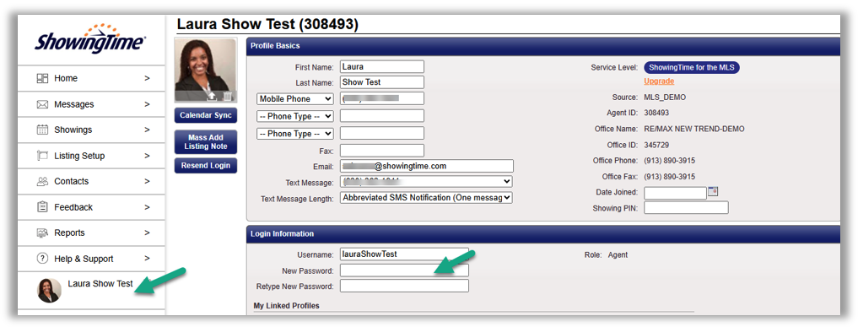
- Confirm the email address listed in your ShowingTime profile is current.
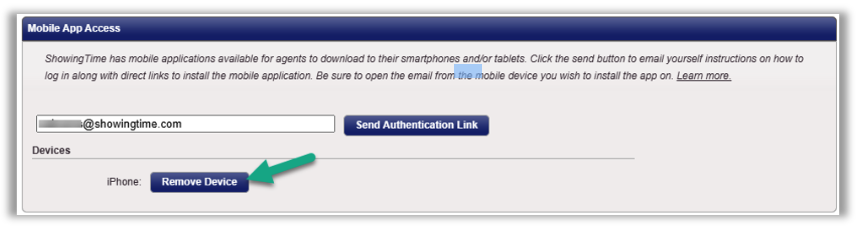
- Review Mobile App Access in your ShowingTime profile and remove any devices you do not recognize or no longer use.
- Contact ShowingTime Support at support@showingtime.com if verification emails continue after completing these steps.
Unknown or unused devices connected to your account can potentially generate additional verification requests, so reviewing your device list is a worthwhile security check.
One Less Login to Remember
Single Sign-On is designed to make accessing your member tools more convenient while keeping access tied to your existing GAAR credentials. For the simplest route to ShowingTime, start with the GAAR Member Portal and access ShowingTime through SSO.
That means fewer passwords to juggle, fewer authentication steps and, ideally, a little less time spent convincing a login screen that you are, in fact, you.



Comments